
How to Assign and Reassign Loan Officers & Processors
Overview
Each loan application in the HELOC portal includes a Loan Team section that displays the Loan Officer (LO) and Processor assigned to the file. This article explains how to assign a Processor for the first time, reassign an existing Processor, and reassign a Loan Officer — all from within the Application Summary screen.
Where to Find the Loan Team Section
The Loan Team section is located on the Application Summary tab of any loan application. You can access it by following these steps:
Open the loan application from your dashboard.
Click on the Application Summary tab (selected by default when you open a loan).
Scroll down below the financial summary metrics to find the Your Loan Team section.
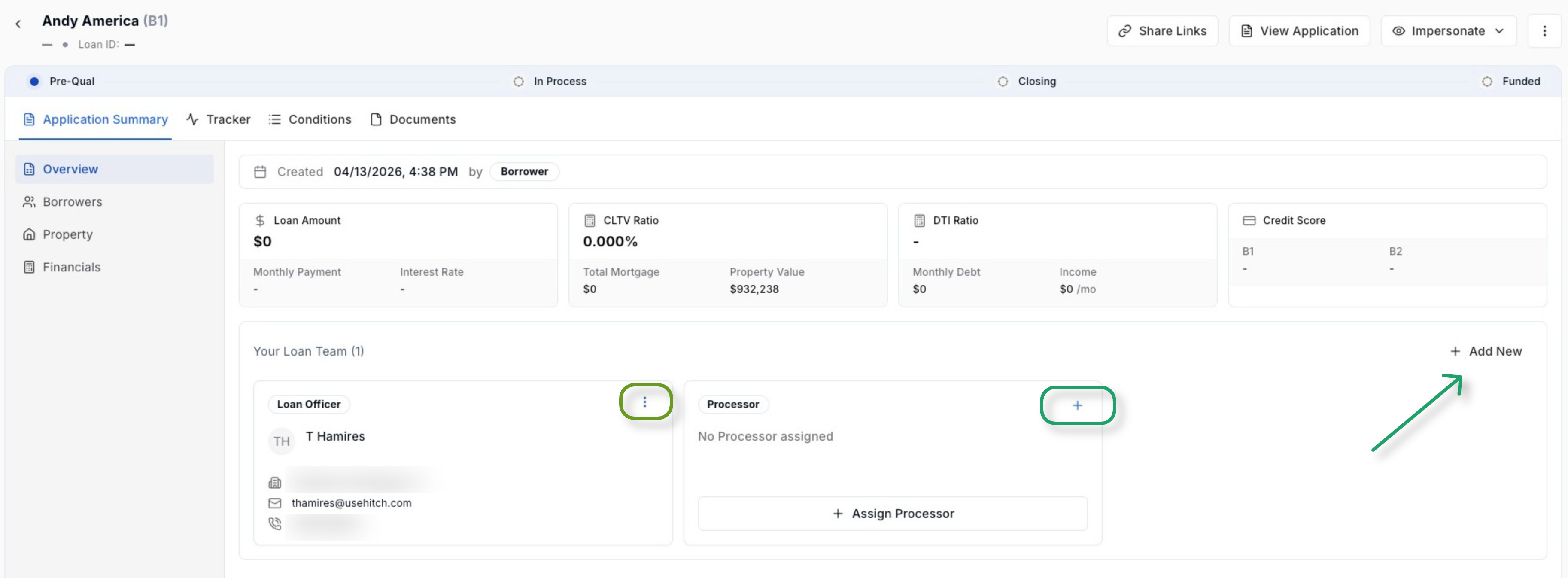
Figure 1 — Application Summary showing the Loan Team section with a Loan Officer assigned and no Processor yet assigned.
In the Loan Team section you will see two columns:
Loan Officer — shows the name, email, and contact info of the assigned LO.
Processor — shows either the assigned Processor or a message reading "No Processor assigned".
📌 Note: Only team members who have been added to your organization's account will appear in the selection menus. If you cannot find a team member, contact your account administrator. |
Assigning a Processor for the First Time
If no Processor has been assigned to the loan yet, you will see a + Assign Processor button in the Processor column. Follow the steps below to make the assignment.
Step-by-Step Instructions
Locate the Processor column in the Your Loan Team section.
Click the + Assign Processor button or the + icon at the top right of the Processor card.
An Add Processor dialog box will appear.
Click the Select an option dropdown and choose the desired Processor from the list.
Click Confirm to save the assignment.
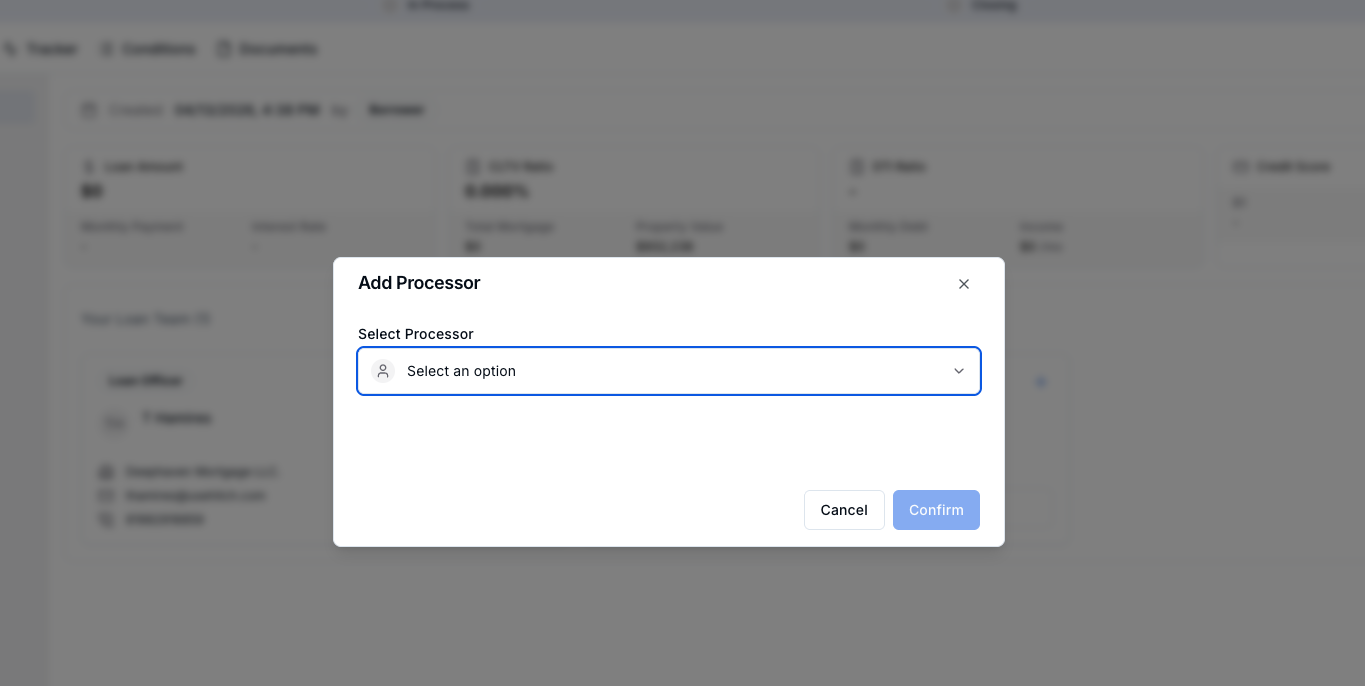
Figure 2 — The Add Processor dialog where you select a team member from the dropdown.
📌 Note: If you click Cancel, no changes will be saved and the dialog will close without modifying the loan file. |
Reassigning an Existing Processor
If a Processor is already assigned and you need to switch to a different team member, you can reassign using the same + icon at the top right of the Processor card.
Step-by-Step Instructions
In the Your Loan Team section, locate the Processor column.
Click the + icon at the top right corner of the Processor card.
The Add Processor dialog will open — the dropdown will be empty, ready for your new selection.
Select the new Processor from the dropdown list.
Click Confirm to apply the change.
📌 Note: Reassigning a Processor will replace the previous assignment immediately. The prior Processor will no longer be linked to this loan file. |
Reassigning the Loan Officer
To change the Loan Officer assigned to an application, use the three-dot menu (⋮) located on the Loan Officer card.
Step-by-Step Instructions
In the Your Loan Team section, locate the Loan Officer column.
Click the ⋮ (three-dot) icon at the top right of the Loan Officer card.
A context menu will appear with the option Reassign Loan Officer.
Click Reassign Loan Officer.
Select the new Loan Officer from the list.
Confirm the change.
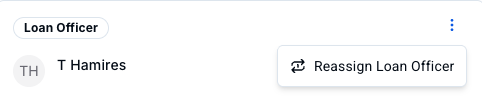
Figure 3 — The three-dot menu on the Loan Officer card showing the Reassign Loan Officer option.
📌 Note: The Loan Officer field cannot be left empty. You must select a replacement before confirming the reassignment. |
Troubleshooting
I don't see a team member in the dropdown
Only users who have been added to your organization appear in the selection list. If a team member is missing, ask your account administrator to add them to the portal.
The Confirm button is grayed out
Make sure you have selected an option from the dropdown. The Confirm button becomes active only after a selection is made.
I accidentally closed the dialog without saving
No changes are applied if you click Cancel or close the dialog. Simply reopen it and start the process again.