
Setting Up Two-Factor Authentication (2FA)
Overview
Two-factor authentication (2FA) adds a second layer of security to your portal account. After entering your password, you will also need to enter a 6-digit code generated by an authenticator app on your mobile device. This means that even if someone obtains your password, they cannot access your account without also having your phone.
The portal uses the TOTP (Time-based One-Time Password) standard, which is compatible with popular authenticator apps including Google Authenticator, Authy, and Microsoft Authenticator. This article walks you through setting up 2FA from start to finish.
What You Need Before Starting
Before beginning the setup process, make sure you have the following:
A smartphone running iOS or Android
An authenticator app installed on your phone (see the next section for download instructions)
Access to your portal account credentials
A safe place to store your backup codes once generated (a password manager, printed copy, or secure document)
Note: 2FA setup takes approximately 3 to 5 minutes. You will not be able to partially complete it set aside a few uninterrupted minutes before you begin. |
Step 0: Download an Authenticator App
If you do not already have an authenticator app on your phone, you need to install one before setting up 2FA in the portal. The portal is compatible with any TOTP-based authenticator app. The most widely used options are listed below.
Recommended: Google Authenticator
Google Authenticator is a free, simple, and widely supported app developed by Google. It generates 6-digit codes that refresh every 30 seconds and works even without an internet connection.
[iOS] iPhone / iPad (iOS) App: Google Authenticator Available on: Apple App Store — Free Download: apps.apple.com/us/app/google-authenticator/id388497605 Requirement: Requires iOS 16.0 or later |
[Android] Android App: Google Authenticator Available on: Google Play Store — Free Download: play.google.com/store/apps/details?id=com.google.android.apps.authenticator2 Requirement: Compatible with Android 5.0 and above |
Alternative Options
If you prefer to use a different authenticator app, the following are also fully compatible with the portal. All are free to download.
App | Available On | Notable Features |
|---|---|---|
Authy | iOS, Android | Cloud backup, multi-device sync, offline support |
Microsoft Authenticator | iOS, Android | Push notifications, cloud backup via Microsoft account |
1Password | iOS, Android, Desktop | Integrated with password manager |
Note: Always download authenticator apps directly from the official Apple App Store or Google Play Store. Avoid third-party download sites. |
Setting Up 2FA in the Portal
Once your authenticator app is installed, follow these steps to enable 2FA on your portal account. The setup flow has three stages: Scan QR Code, Verify Code, and Save Backup Codes.
Step 1 | Generate Your QR Code Log in to the portal and navigate to your account security settings. Click the button to generate your QR code. The portal will display the Set Up Two-Factor Authentication screen. |
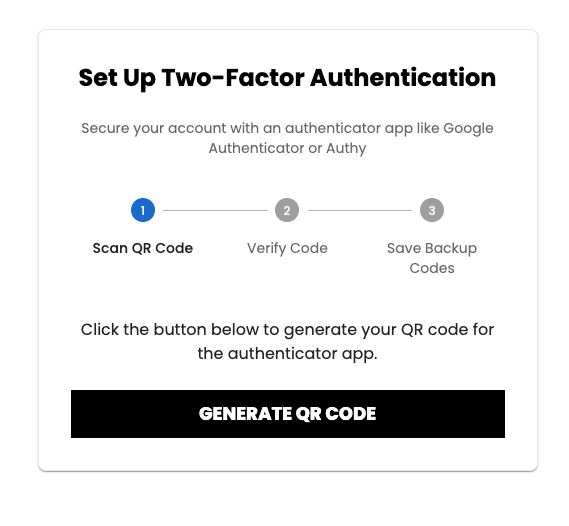
Figure 1 — The 2FA setup screen. Click Generate QR Code to begin.
Step 2 | Scan the QR Code with Your Authenticator App Open your authenticator app on your phone and choose to add a new account. Select the option to scan a QR code, then point your phone's camera at the QR code displayed on the portal screen. The account will be added to your app automatically. |
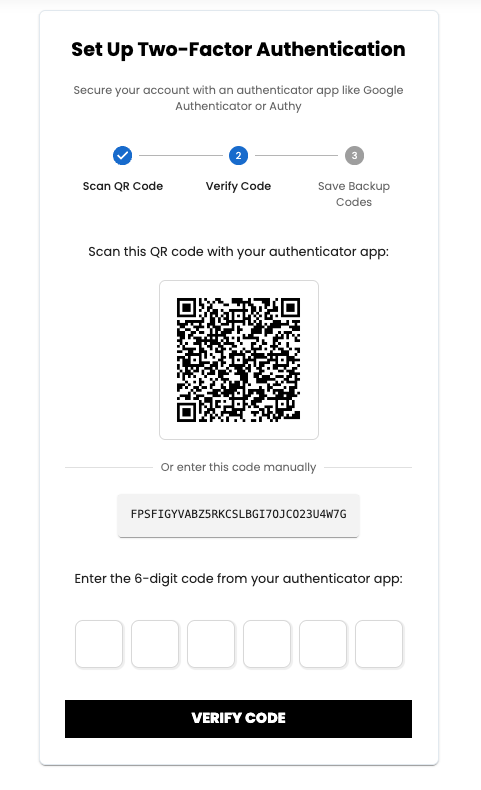
Figure 2 — Scan the QR code displayed on screen with your authenticator app. If you cannot scan the code, tap "Or enter this code manually" and type the setup key shown below the QR code directly into your authenticator app.
Note: Each QR code is unique to your account and generated fresh each time. Do not share the QR code or the manual setup key with anyone. |
Step 3 | Enter the 6-Digit Verification Code After scanning, your authenticator app will show a 6-digit code that refreshes every 30 seconds. Type this code into the six boxes on the portal screen and click Verify Code to confirm the link between your app and your account. |
Note: Enter the code before the timer in your authenticator app runs out. If it expires, wait for the next code to appear and try again. |
Step 4 | Save Your Backup Codes After verifying the code, the portal will display 10 one-time backup codes. These codes can be used to access your account if you ever lose access to your authenticator app — for example, if you lose or replace your phone. |
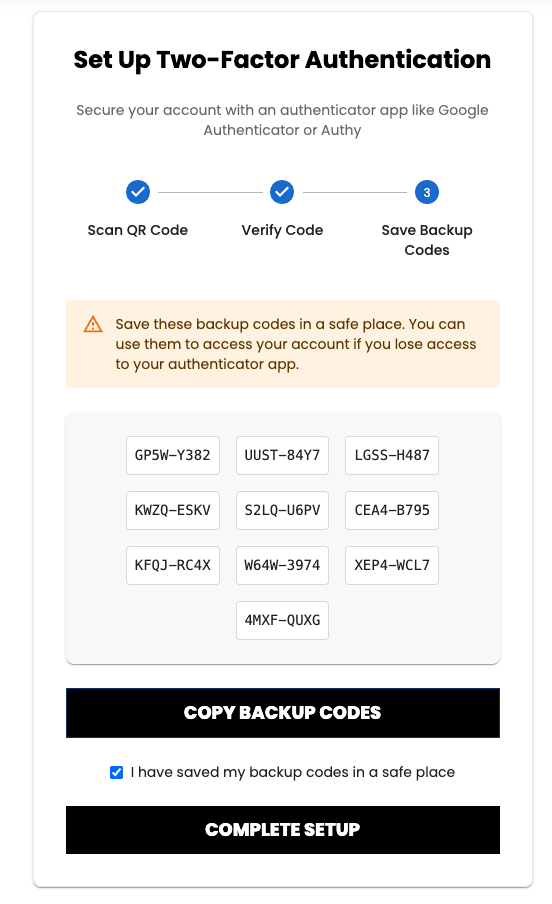
Figure 3 — Save all 10 backup codes in a safe location before completing setup. Each code can only be used once.
Important: Save your backup codes immediately. Click Copy Backup Codes to copy them, then store them somewhere secure — such as a password manager, an encrypted note, or a printed document kept in a safe place. You will not be able to view these codes again after completing setup. |
Once you have saved your codes, check the box confirming you have saved them in a safe place, then click Complete Setup. Your 2FA setup is now complete.
Logging In with 2FA Enabled
After 2FA is set up, every sign-in to the portal will require a second step. The process works as follows:
Enter your username and password as normal on the portal login page.
The portal will display the Two-Factor Authentication screen, prompting you to enter your 6-digit code.
Open your authenticator app, find the code for your portal account, and enter it into the six boxes.
Click Verify to complete the sign-in.
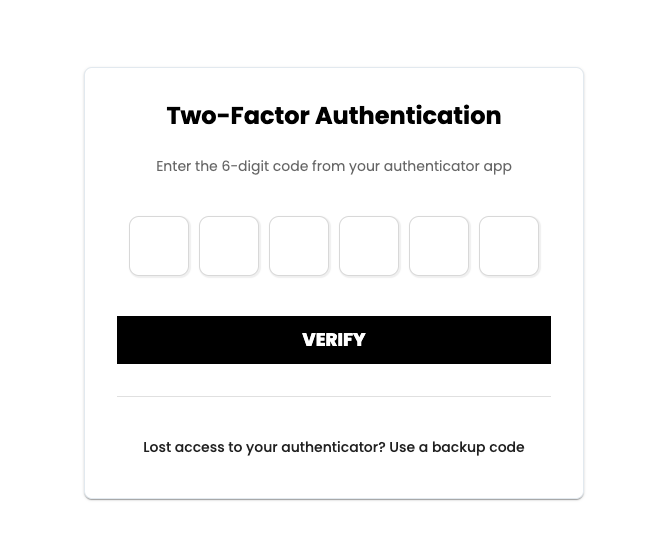
Figure 4 — The Two-Factor Authentication screen shown at every login after 2FA is enabled. Enter the current 6-digit code from your authenticator app.
If you no longer have access to your authenticator app, click the Lost access to your authenticator? Use a backup code link on the login screen and enter one of your saved backup codes.
Troubleshooting
The 6-digit code is not being accepted
The most common cause is a time sync issue on your phone. Make sure your device's date and time are set to Automatic. Open your phone's Settings, search for Date & Time, and enable the Set Automatically option. Then try entering the next code when it refreshes (every 30 seconds).
I lost access to my authenticator app
If you have your backup codes, use the Lost access link on the login screen and enter a backup code. If you do not have backup codes and cannot access your account, contact your account administrator to request a 2FA reset.
I got a new phone and need to transfer my authenticator
Open Google Authenticator on your old phone, tap the three-dot menu, and choose Transfer Accounts, then Export Accounts. Follow the on-screen steps to scan the transfer QR code with your new phone. If you have already reset your old phone, you can log in with a backup code and then set up 2FA again from scratch.
The QR code is not scanning
Ensure there is adequate lighting and that your phone's camera is clean. If the camera still cannot read the code, use the manual entry option: tap Or enter this code manually below the QR code on the portal screen, and type the alphanumeric setup key directly into your authenticator app.
I have been locked out of my account
Contact your account administrator. They can initiate a 2FA reset on your account so you can set it up again. You will need to verify your identity through other means before the reset is applied.
Security Best Practices
Store your backup codes in at least two separate secure locations — for example, in a password manager and as a printed copy in a locked drawer.
Never share your authenticator QR code, setup key, or 6-digit codes with anyone, including support staff. The portal team will never ask for these.
Enable cloud sync in your authenticator app (available in Google Authenticator and Authy) so your codes are backed up if your phone is lost or replaced.
If you lose or replace your phone, transfer your authenticator accounts before resetting your old device whenever possible.
If you suspect your account has been compromised, contact your account administrator immediately.